
The CCTSync Outlook Add-In can be installed in just a few steps. If you have already installed the add-in but it does not appear in Outlook, you can find troubleshooting tips on this page Troubleshooting for Office Add-Ins (German).
CCTSync includes an automatic update feature. Security updates, new features, and bug fixes are installed automatically, provided that your operating system does not block the update process.
If you use Internet security software such as McAfee, Bitdefender, or a similar product, you may need to allow access to andreasulbricht.de to install the add-in and receive updates.
Installation
1.) Download the installation package from the download section.
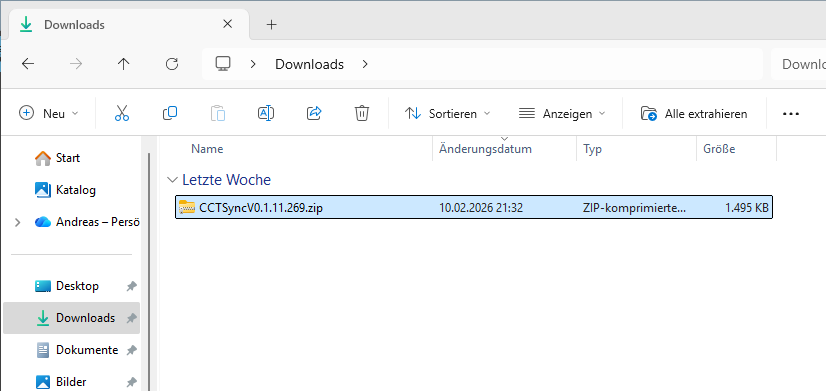
2.) After downloading, locate the ZIP file in your PC’s Downloads folder. Double-click the ZIP file.
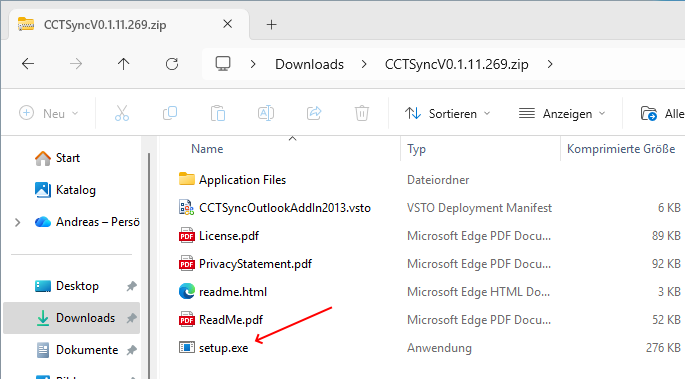
3.) Double-click Setup.exe.
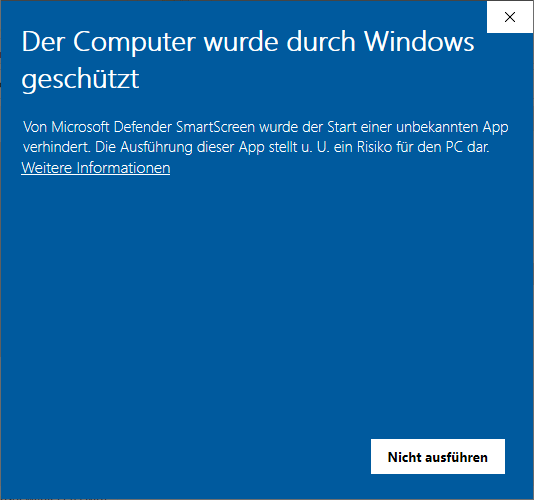
4.) If Microsoft Defender SmartScreen appears, click More info.
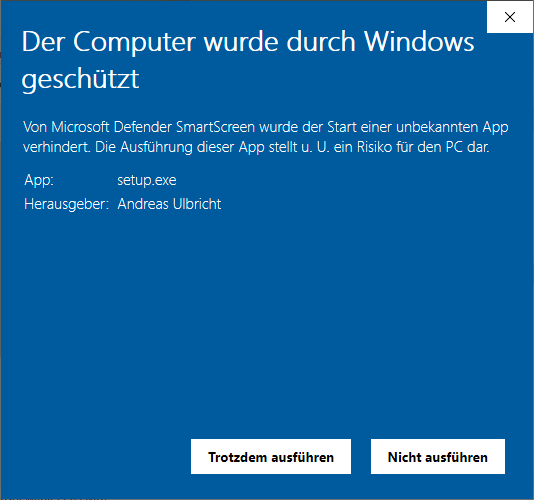
5.) Click Run anyway to continue the installation.
6.) When prompted, click Install.
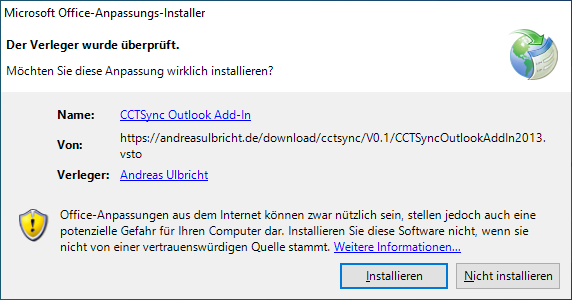
7.) The latest installation files will be downloaded and installed automatically.
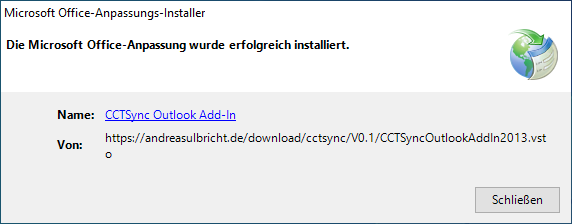
8.) Once completed, the installation has been successfully finished.
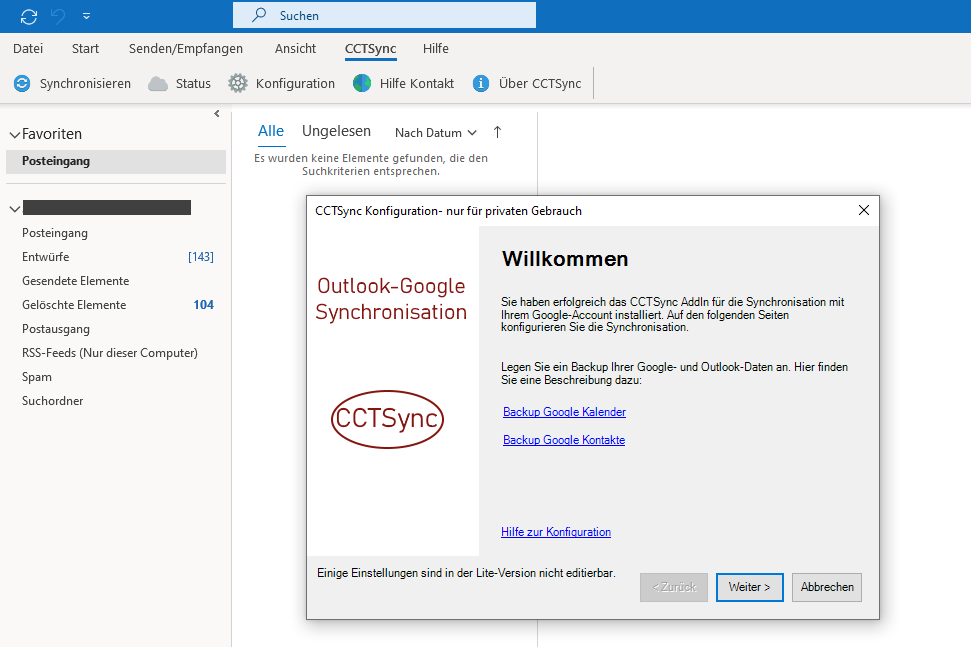
9.) The next time you open Outlook, the CCTSync toolbar and the configuration wizard will appear.
Uninstallation
If you need to remove the add-in, follow these steps:
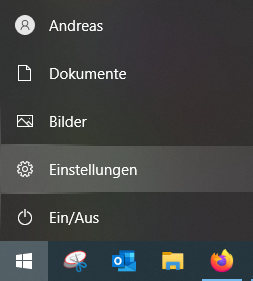
1.) Open the Windows Start menu and select Settings.
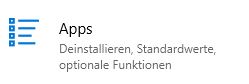
2.) Open Apps to manage installed applications.
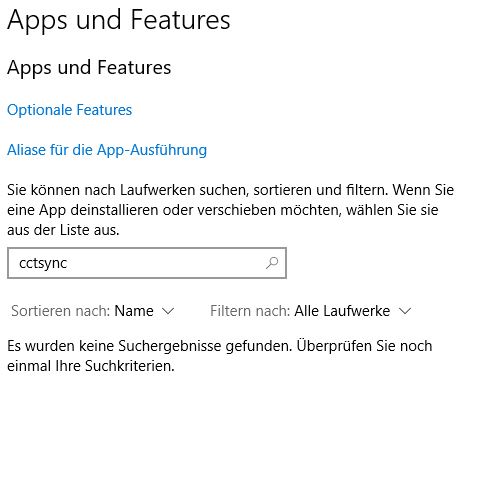
3.) In the Apps & Features section, enter cctsync in the search box. The CCTSync Add-In will appear in the list.
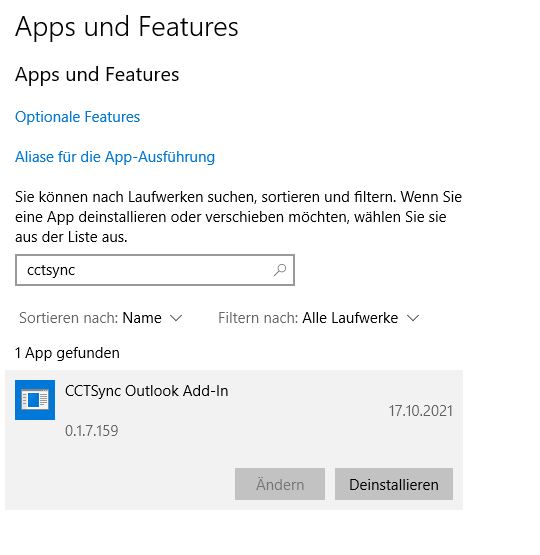
4.) Select CCTSync Add-In and click Uninstall.
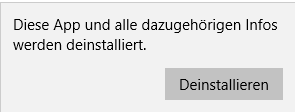
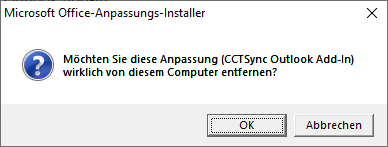
5.) Confirm the security prompt and click Uninstall again when asked whether you really want to remove CCTSync.
6.) The uninstallation is complete when the CCTSync Add-In no longer appears in the Apps & Features list after searching for it.
Version History
V0.1.12.277
- Bug fix Configurationsmanager page Summary
V0.1.12.276
- Bug fix Bugfix Error2(785) in sync of calendar
V0.1.12.275
- Bug fix for updating recurring Google Calendar events to Outlook
